
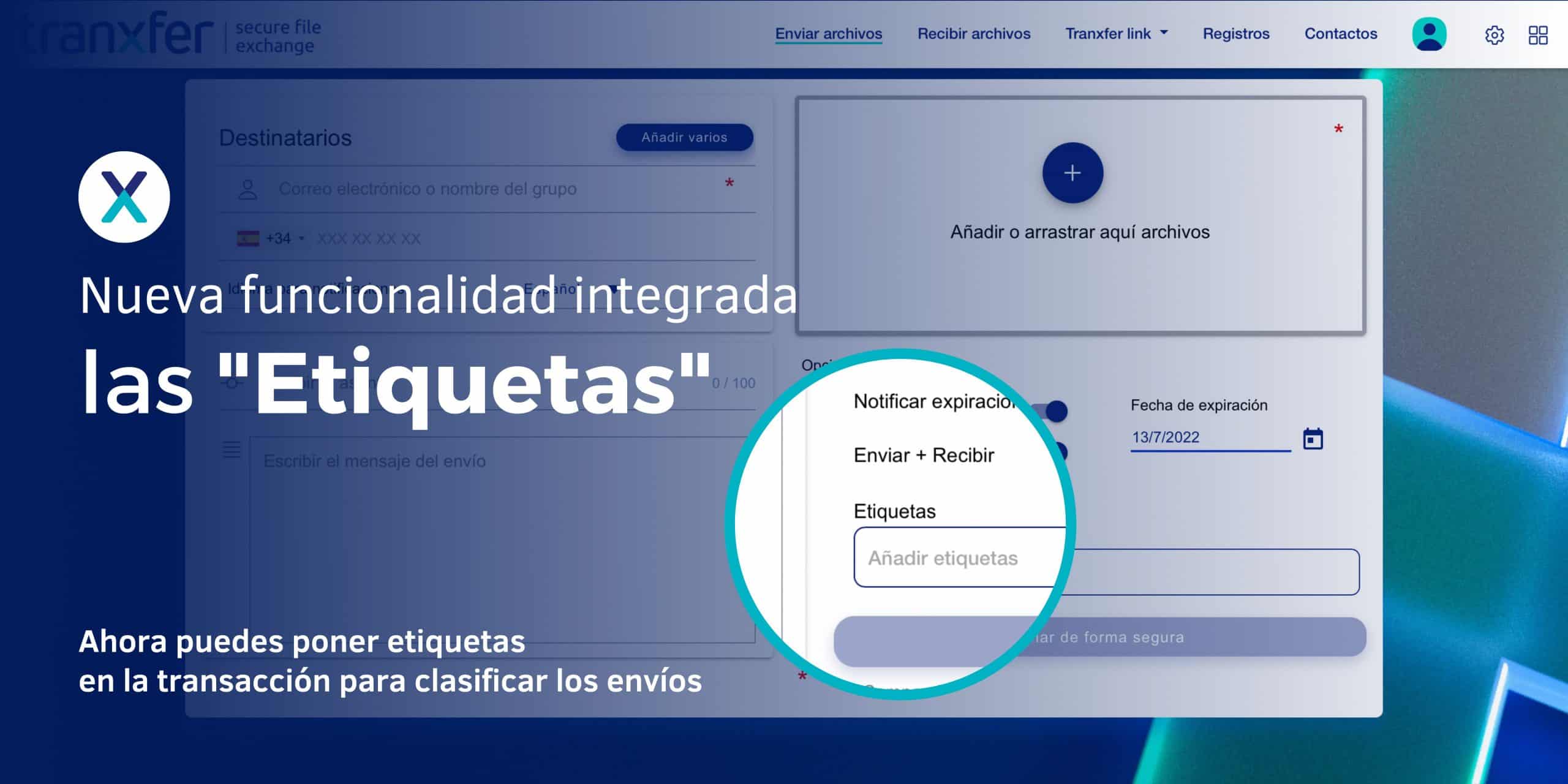
Tranxfer now lets you categorize transfers with “Tags.”
What are tags used for? Tags are used for categorization. Many digital services offer the ability to tag transactions within their platform, allowing you to filter and quickly find specific actions later on. Tags are individual labels and can be used to indicate various details, such as file type, size, importance, subject matter, and more. From the main dashboard, you can then filter for those with a specific tag.
“How to use tags in Tranxfer.”
Tags in Tranxfer are used to classify transfers made using the platform. You can tag either the transfers in general or the files themselves.
To tag the transfer, go to the lower box located at the very bottom of the user interface, immediately before the “Send Securely” button.
Click on the “Add tags” box, then type the text for the transfer tag; you can use spaces. Once you’re done, remember to press the Enter key to complete the label creation. It will be created correctly when you see the label text inside a gray box with an “x.” You can create as many tags as you need by following these steps, and you can delete them simply by clicking the “x”. Repeat this process as many times as necessary.
To add tags to the files included in the transfer, you must first attach at least one file. Once the file upload has been completed, you will see that the file’s detailed information includes a box where you can enter tags. The box works exactly as described above.
To filter, click on “Records” in the platform’s top menu. All transfer records will appear; then click on Filters. A small window will open where you can apply filters by tags or by dates.
To search for a tag, remember to press the Enter key. Just like when creating them, if you see the text inside the gray tag with an “x,” it has been created correctly.
What is the difference between tags on a transfer and tags on a file?
It’s worth noting that both types of tags have the same weight and characteristics on the platform. The difference is that if you tag the transfer in general, when you filter, the transfer will appear along with its files; however, if you tag the files, only the individual files will appear. For example, if you tag a transfer, when you apply the filter from the main console, the transfer and its files will appear. If, on the other hand, you tag the file, only the files with that tag will appear.
Best Practices with Tags
Once you have transferred transactions with tags, you can access the information in the Transaction Details. Locate the transfer in question and click on it to view its details.
You will find all the information related to the transfer, as well as the files and the tags you used at the time. The tags are dynamic, so you can still add new ones or remove them at any time.
From the records overview window, you can apply filters to refine the transfers you want to view on screen and display only those that match the tags you’ve created. Click the inverted pyramid-shaped Filters option in the upper-right corner, and enter the tags you want to filter by.
Remember that the mechanics and use of tags in Tranxfer are available via an API for use in the development of applications and services.
Here you can see all of Tranxfer’s features.